Transfer Journal
The Transfer Journal looks at demand across Sales Orders, compares it to Inventory on Hand and creates transfer suggestions based on remaining demand. These suggestions are created in a worksheet where a planner can determine what locations to supply the Sales Orders from and automatically create Transfer Orders to move the products between locations.
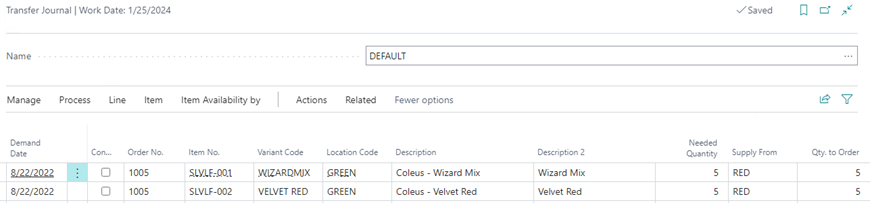
The Transfer Journal has the ability to show the availability of inventory in the selected Supply From Location:
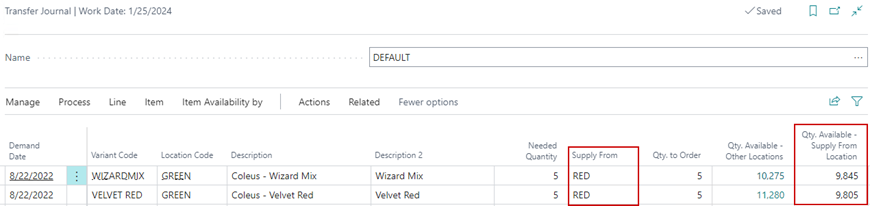
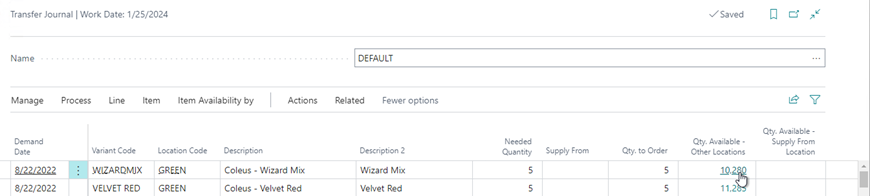
As well as the ability to see the available supply in other Locations:
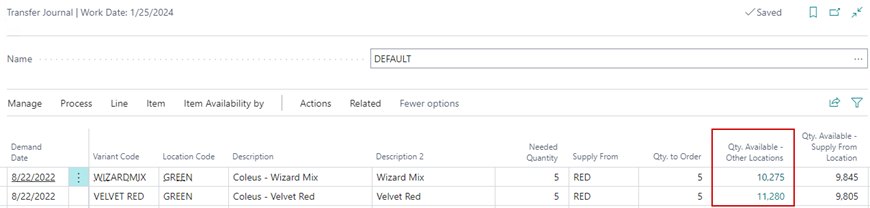
Users can leverage this information to determine what location they want to supply Sales Orders from provided multiple supply-from locations exist.
Note
In the Requisition Worksheet Names page you can check the Calculate Qty. Available field to add the two Quantity Available fields to the worksheet. These fields will help the Requisition Worksheet achieve a functionality similar to the Transfer Journal.
How to: Supply Sales Orders from another Location
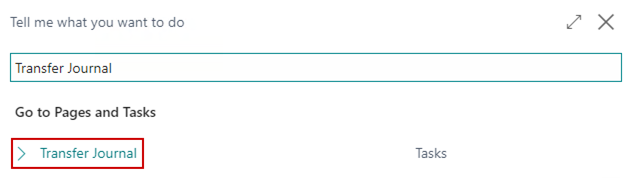
Click the magnifying glass, search for Transfer Journal, and click the related link:
On the menu go to Process/Calculate Plan:

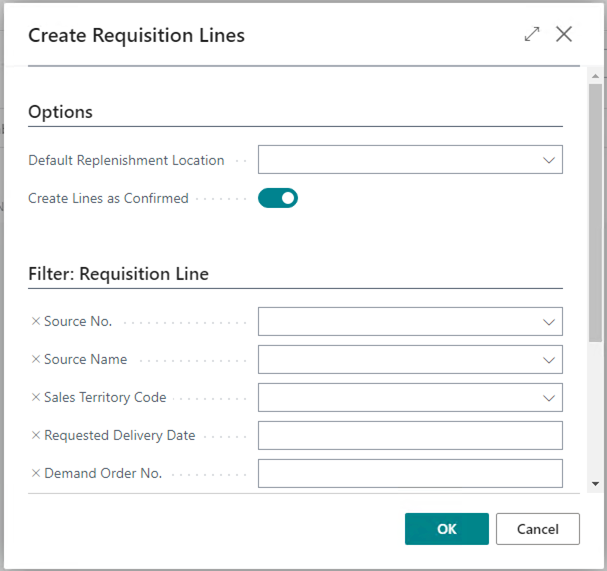
On the Create Requisition Lines request page, you can select the location from where you would like to replenish inventory. If you are not sure – you can leave it blank. Click OK to create the transfer journal lines. Toggle on the Create Lines as Confirmed to automatically check off the Confirmed checkbox when creating lines:
Once the lines are populated – you can check the supply from other locations by drilling into the Qty. Available – Other Locations field:
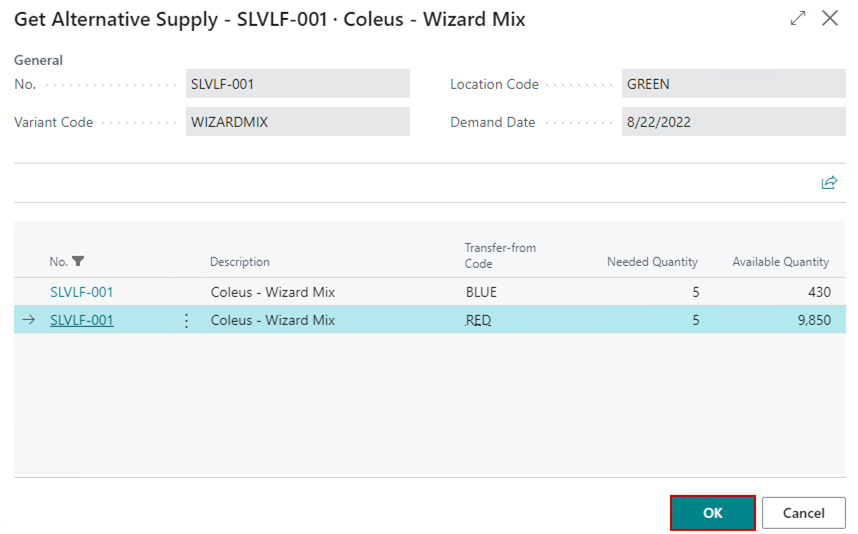
This will open the Get Alternative Supply page. The user can select from which Location to supply the Sales Order, and click OK:
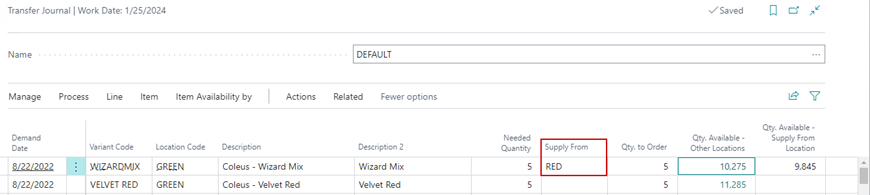
This will populate the Supply From Location field on the Transfer Journal line:
Note
The Supply From field can also be populated manually.
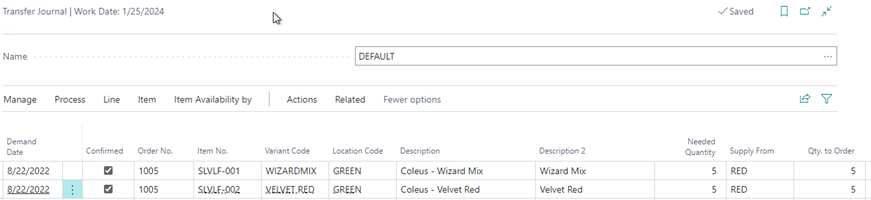
Check the Confirmed checkbox for all lines for which you wish to create a transfer order (if you toggled on the Create Lines as Confirmed field when Calculating Plan they will all be checked by default):
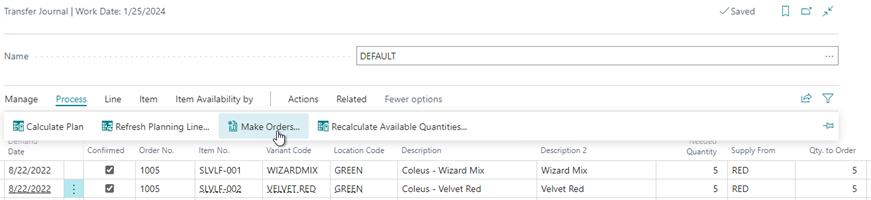
Go to Process/Make Orders:
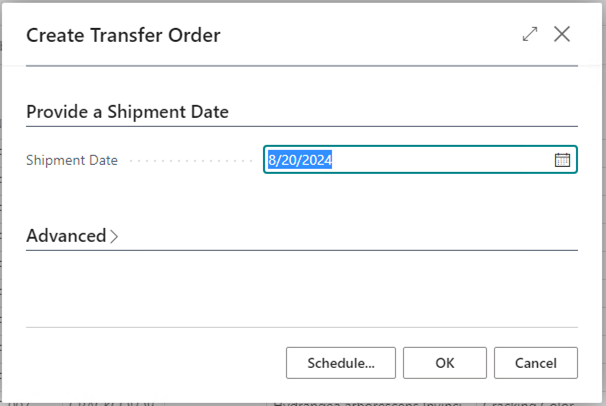
On the Create Transfer Orders request page, select the Shipment Date for the Transfer Orders and click OK:
The Transfer Orders will be created and can be processed.